
HERO13 Antiflicker Bug: How-To (part 2)
As anticipated in the first part, to isolate the technical origin of the problem, it was necessary to analyze the video files’ metadata. Telemetry Extractor is a specialized software tool for extracting and analyzing the “invisible” metadata found in GoPro camera files (from the HERO5 series onwards). This application, free for most of its functions, allows you to translate the stream of technical information saved by the camera into readable data, graphs, and formats ready for video editing, and can be downloaded at this link. In fact, every video recorded by a GoPro contains, in addition to images, a data stream called GPMF (GoPro Metadata Format). Telemetry acts as an “interpreter” for these codes, displaying GPS data (in the paid version) such as position, speed, altitude, and path. The software also shows motion sensors (information from the accelerometer, gyroscope, and magnetometer) and recording parameters with instantaneous values for ISO, Shutter Speed, white balance, average brightness, and much more. This last function is particularly useful because, unlike the official GoPro Labs “Metadata Extraction” page, it provides data moment by moment. The software is compatible with 64-bit Windows and macOS systems. Usage is intuitive: simply import the original .mp4 file to view all available data streams for that specific clip.
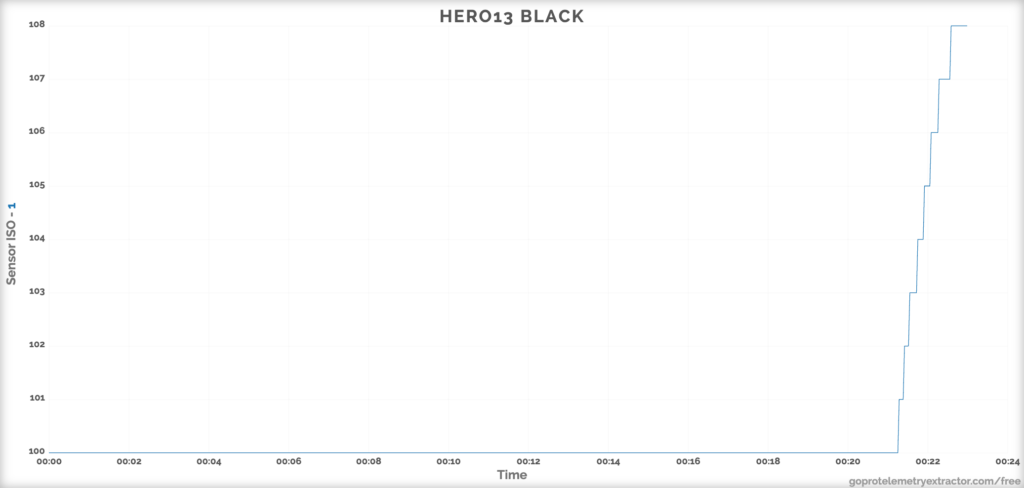
ISO sensitivity graph generated by Telemetry. The result is identical for both Flat and Natural profiles.
To understand the flickering problem during the turtle recording, I analyzed the Shutter Speed and ISO of the affected clip. The ISO graph is easy to interpret: it shows that the GoPro shot at 100 ISO for almost the entire duration of the video, with a slight increase only at the end when the shot moved into the blue. The Shutter Speed graph is less intuitive. On the x-axis (horizontal), as with the previous graph, we find time. On the y-axis (vertical), we have the instantaneous Shutter Speed. The value indicated with “m” is a technical abbreviation for milliseconds (ms), expressed in decimal notation by the software. To convert that number into the classic “1/X” value, a small calculation is needed. For example, 8.3m means 0.0083s; to find the corresponding fraction, you must divide 1 by that number: 1 / 0.0083 = 120.
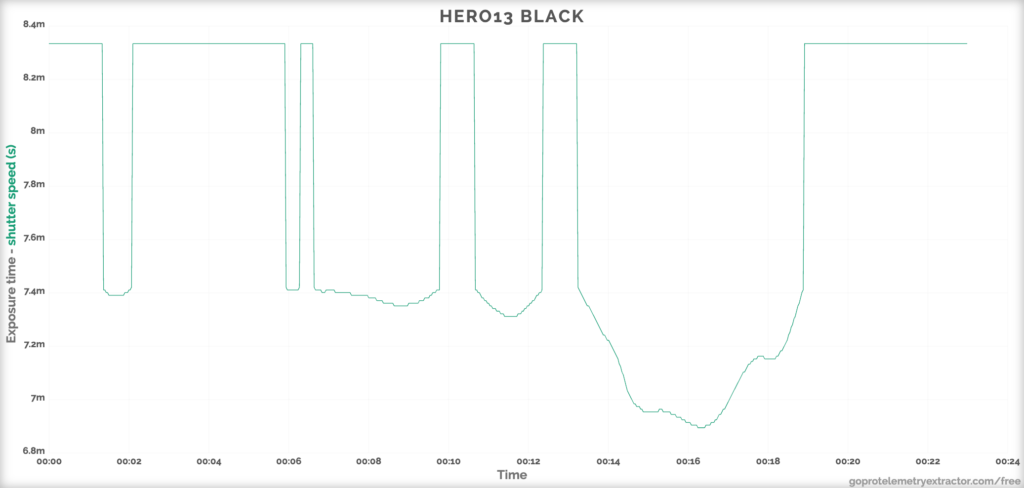
The Shutter Speed variation graph, instead, shows abrupt jumps on the GoPro with the Flat profile.
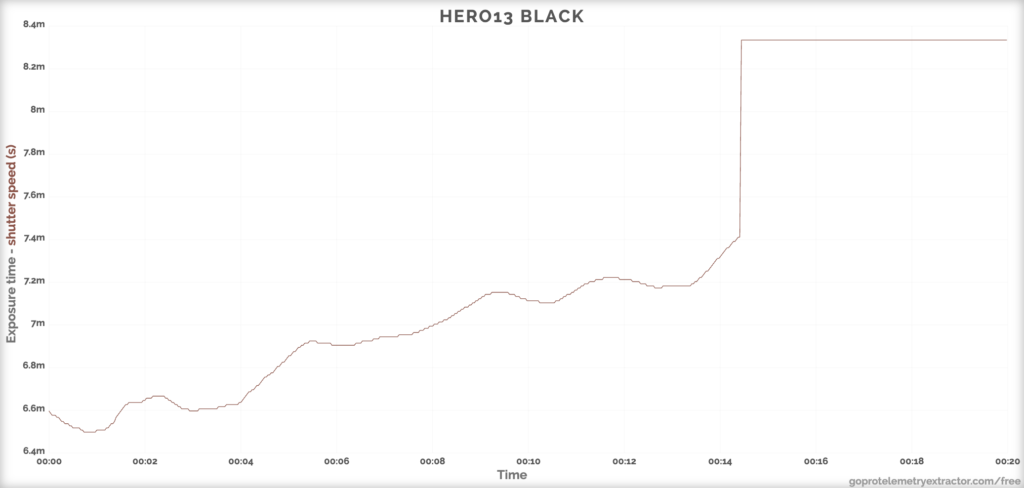
On the GoPro with the Natural profile, the Shutter Speed variations are much more gradual.
At that point, the GoPro was shooting at approximately 1/120 of a second. As seen in the graphs, even though the light in the shot was constant (the framing did not shift toward sun or shadow), the Shutter Speed values fluctuate abruptly several times between 8.4m and 7.4m: this is the bug that caused the flickering, making the footage unusable. In the same shot taken with the Natural Color Profile, the ISO values are identical, but the Shutter Speed graph shows gradual variations, ranging from about 1/140-1/170 (fast shutters) at the beginning of the clip to the classic 1/120 when the shot moves toward the blue (slower shutter). This analysis confirms that the Flat/Log profile, lacking dynamic tone-mapping, cannot compensate for the micro-variations of the shutter, making the defect extremely visible and the use of the BFLK extension absolutely necessary.
To learn all the secrets of the GoPro Labs firmware, join GoPro Hacks. Here is just a preview of what you will find: Advanced GoPro Underwater Settings, the definitive guide with settings you won’t find anywhere else; GoPro Labs & Extensions, with diving configurations that almost no one knows; shooting techniques and post-production secrets, from the perfect capture in the blue to creating a cinematic look.
Join now to discover all the content and start transforming your videos!